Two-factor Enforcement
Two-factor authentication (2FA) enforcement requires members to enable personal 2FA before accessing your team's resources. Team owners can enable enforcement after enabling their own 2FA.
All Edgenivo users must complete authenticator app setup by January 20, 2027. See authenticator app requirements.
Existing team enforcement takes effect immediately. Members must have 2FA enabled to access teams that already enforce it.
Prepare your team before January 20:
- Ask every member to set up an authenticator app. Members who use a passkey must also add an authenticator app.
- Ask members to save their recovery codes. They can also add a passkey for phishing-resistant sign-in.
- Review member readiness and the accounts behind deployment and automation tokens before enforcement takes effect.
Current enforcement accepts enabled personal 2FA with an authenticator app or a passkey. The upcoming requirements also apply to members whose 2FA uses only a passkey.
Members without enabled 2FA can't access team resources. Edgenivo prompts them to complete setup when they visit the team dashboard. They remain on the team, occupy a seat, and receive notifications.
Review deployments and automation before enabling enforcement:
- Personal access tokens use their owner's 2FA status. If the owner hasn't enabled 2FA, requests to the team can fail, including deployments from the CLI or CI/CD pipelines.
- Accounts used for services or bots also need enabled 2FA if automation uses their personal access tokens.
- Integration tokens are exempt from this personal 2FA enforcement check.
After completing setup on their own account, members can return to the team dashboard to regain access.
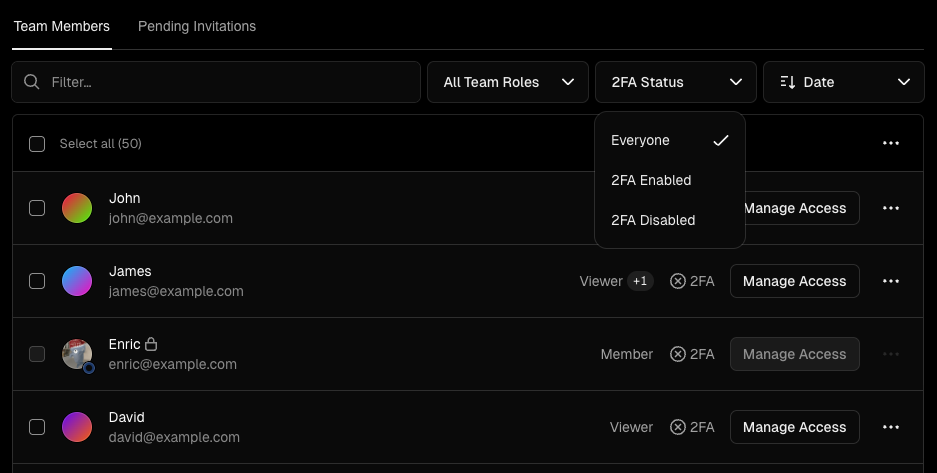
Open Settings, then Members for your team to review members' 2FA status. Filter for disabled 2FA to find members who need to complete setup.
This filter doesn't identify members with passkey-only 2FA. Ask members to confirm that they've added an authenticator app, even if their 2FA status shows enabled.
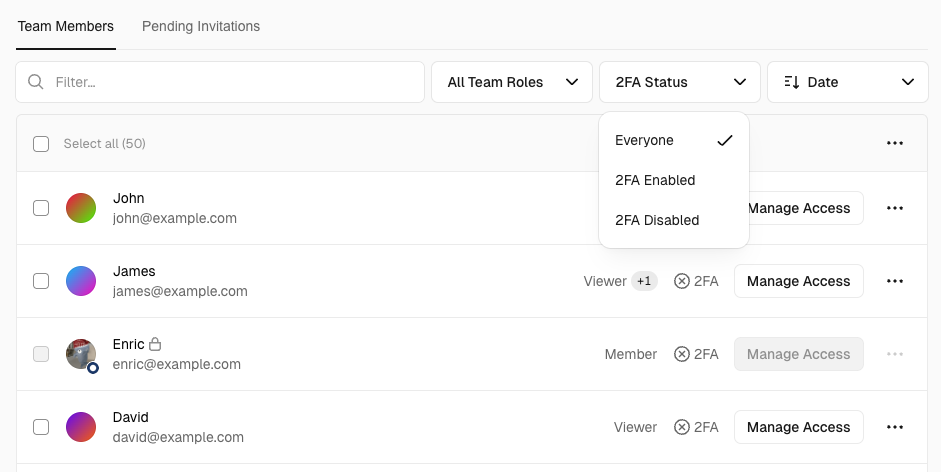
As a team owner, set up an authenticator app on your account. Tell members when you plan to enable enforcement and share the setup instructions. Review members and automation accounts before continuing.
- Select your team in the dashboard and open Settings, then Security & Privacy.
- Find Two-Factor Authentication Enforcement and turn on the switch.
- Select Save and confirm that enforcement shows Enabled.
Saving takes effect immediately. Members without enabled 2FA must complete setup to regain team access.


Was this helpful?