Two-factor Authentication
Two-factor authentication (2FA) adds a verification step when you sign in to Edgenivo. Set up an authenticator app for 2FA. You can also add a passkey for phishing-resistant sign-in.
All Edgenivo users must set up an authenticator app by January 20, 2027. If you already use a passkey, keep it and add an authenticator app.
Existing team 2FA requirements still apply. If your team already requires 2FA, you must have 2FA enabled to access its resources.
Use an authenticator app such as Google Authenticator, Microsoft Authenticator, or a password manager that supports time-based one-time passwords (TOTP).
- Open authenticator setup. Sign in and verify your identity if prompted.
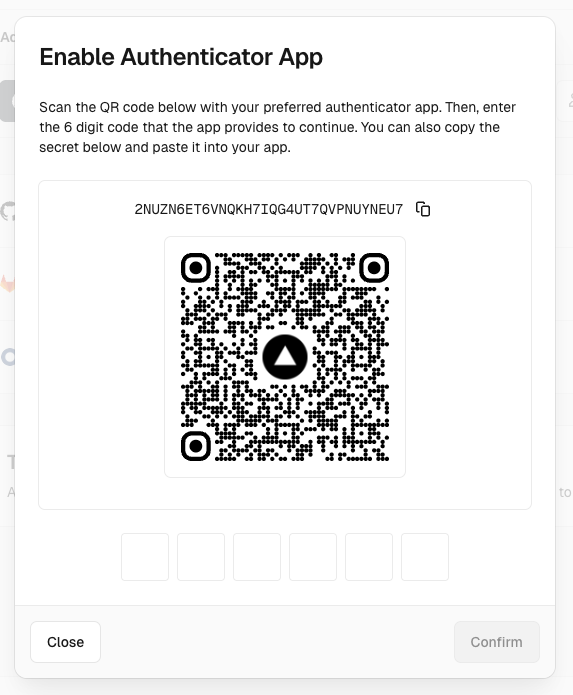
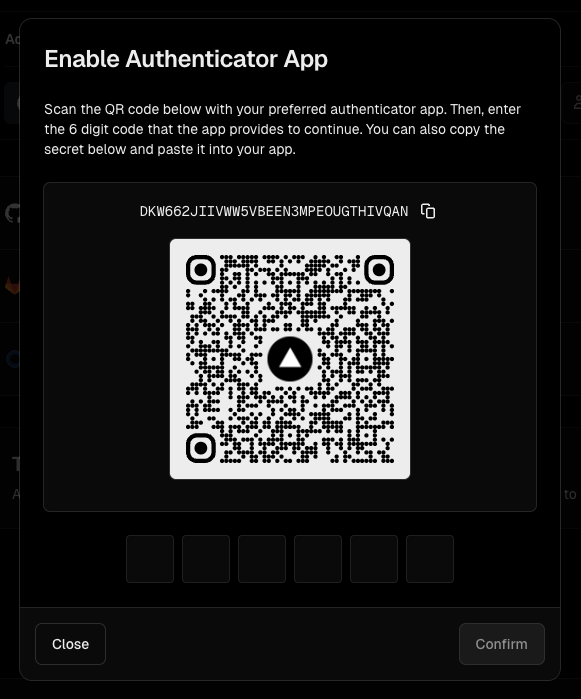
- In your authenticator app, add an account and scan the QR code that Edgenivo displays. If you can't scan the code, copy the setup key into your app.
- Enter the six-digit code from your Edgenivo entry in the authenticator app.
- Complete the setup prompts, selecting Enable if prompted.
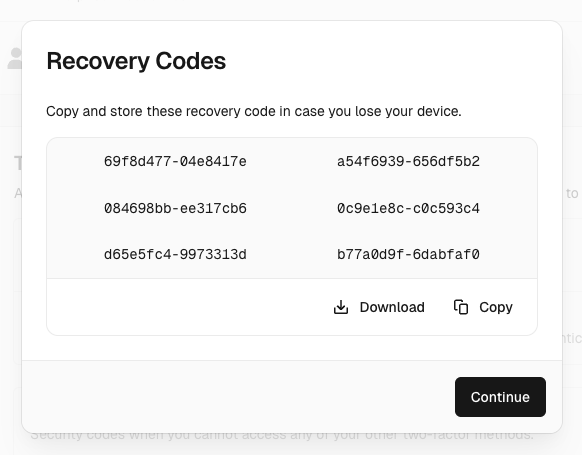
- Download or copy your recovery codes to a secure location, then confirm that you've saved them.
- Return to your authentication settings. Confirm that 2FA shows Active or Enabled and Authenticator App (TOTP) shows Enrolled or Added.
After setting up your authenticator app, you can add a passkey to sign in with a fingerprint, face recognition, or device PIN. You can save a passkey on a compatible device, in a password manager, or on a hardware security key.
Passkeys protect against phishing by checking the site's identity. Keep your authenticator app and recovery codes in case you lose access to your passkey.
- Open your authentication settings.
- Under Add New, select Passkey, then Continue.
- Choose where to save the passkey and follow your browser or device prompts.
- Confirm that the passkey appears in your list of login methods.
For device options, see Login with passkeys.
Recovery codes let you sign in if you lose access to your authenticator app or passkey. When Edgenivo prompts you during setup, save the codes in a password manager or another secure location you can access without your device.
Each code works once. You can generate a new set in your authentication settings.

- Authenticator code rejected: Check that you're using the correct Edgenivo account entry. Enter a fresh code before it changes. If codes still fail, set your device's date and time automatically.
- Setup no longer valid: Follow Edgenivo's prompt to get a new QR code. Replace the previous setup entry in your app, then verify the new code.
- Lost access to your authenticator: Use an enrolled passkey or a saved recovery code when signing in. If neither is available, follow the recovery options on the sign-in screen or start account recovery.
Team owners can require members to enable 2FA before accessing team resources. Enabling personal 2FA doesn't enable this team setting.
See two-factor enforcement to prepare members, review automation, and enable enforcement.
Was this helpful?